
By Sadia Batool | Founder, RCM Navigator | 15+ years of U.S. healthcare revenue cycle management experience
Accurate charge entry begins before a claim reaches the payer. An incorrect service date, mismatched insurance, unsupported diagnosis, or missing modifier can create avoidable billing work. This practical tutorial explains manual charge creation in Allscripts (Veradigm Practice Management) using four original interface images.
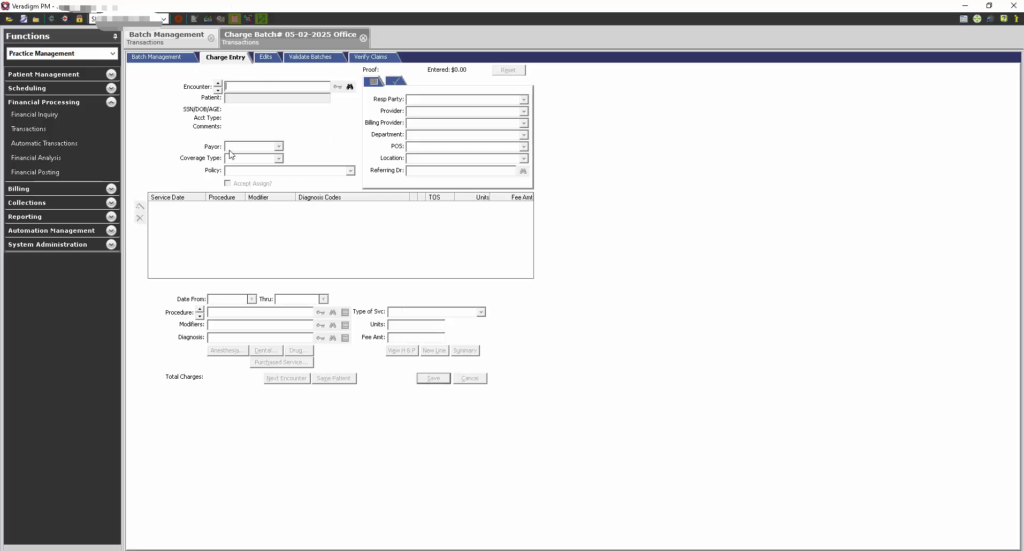
Step 1. Open Charge Entry
Log in with your authorized account. From Financial Processing, navigate through Transactions and Batch Management to the Charge Entry workspace. Verify that the correct charge batch is selected.

Step 2. Select the patient and review coverage
Choose the intended patient account or encounter. Review the insurance policy, responsible party, rendering and billing providers, department, and place of service. Confirm that coverage applies to the date of service before entering charges.
Step 3. Enter the first procedure
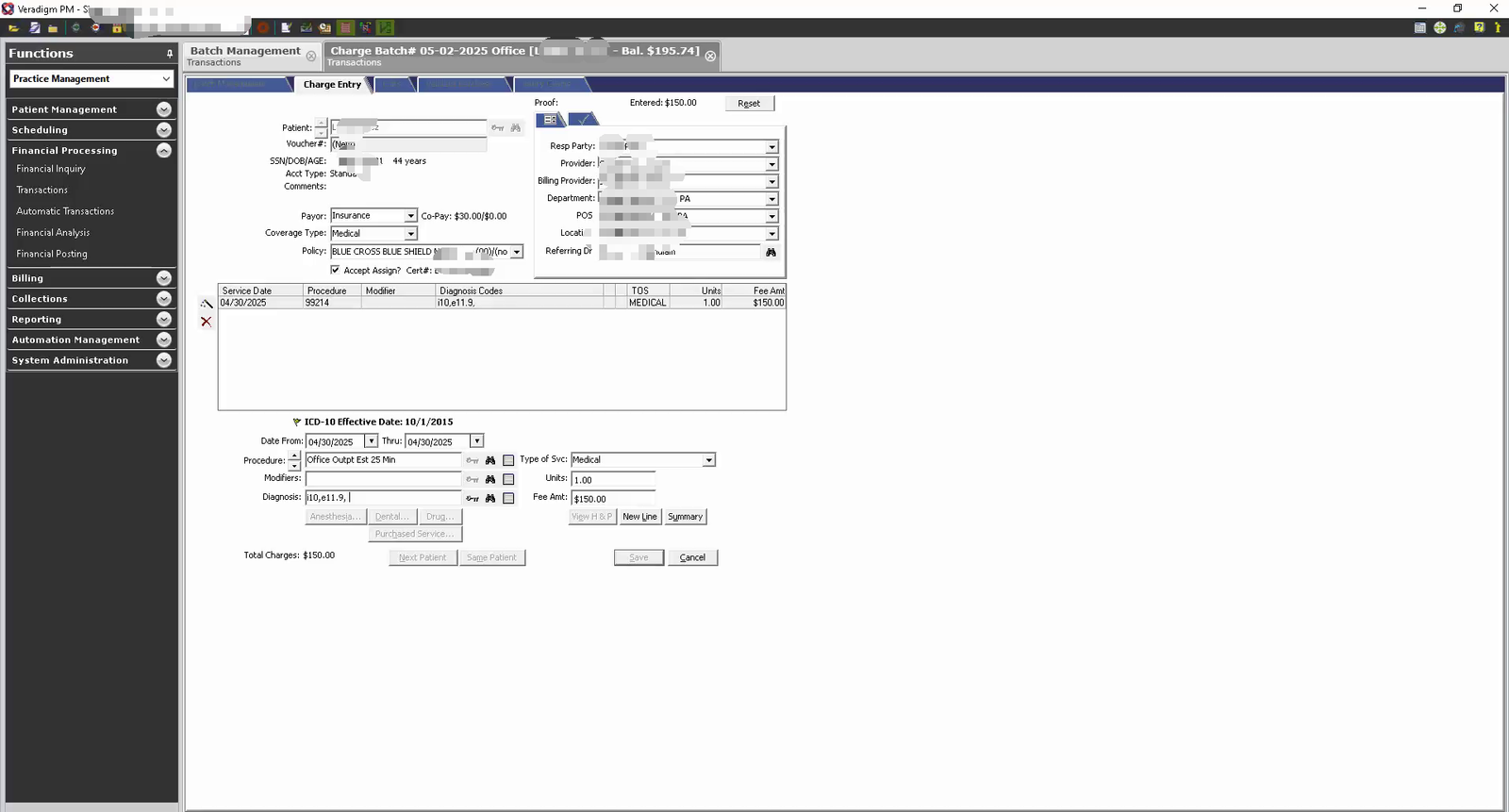
Enter the date of service in the applicable date fields, select CPT 99214, associate the supported diagnosis codes, enter units and the fee, and add the procedure to the charge grid. The illustrated training example includes an established-patient office visit charged at $150.00.
Step 4. Add and reconcile the remaining procedures
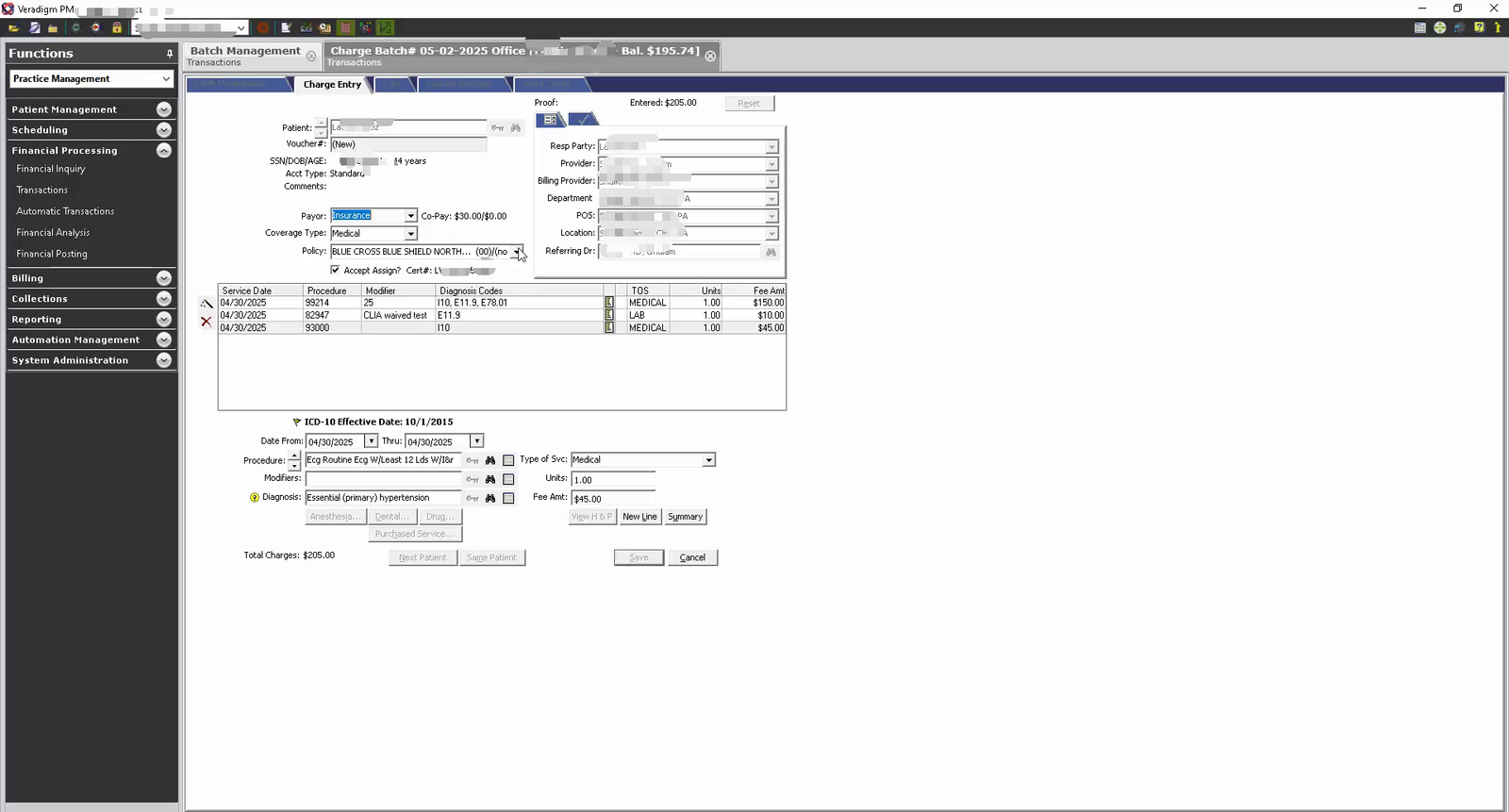
Use a new procedure line for each additional service. The illustrated charge entry contains three lines:
| CPT | Service | Charge |
|---|---|---|
| 99214 | Established-patient office visit | $150.00 |
| 82947 | Glucose test | $10.00 |
| 93000 | 12-lead ECG with interpretation and report | $45.00 |
| Total | $205.00 | |
Review diagnosis associations, units, and modifiers individually. Modifier 25 requires a significant, separately identifiable E/M service when applicable. Confirm whether the glucose testing service meets applicable CLIA and payer modifier requirements rather than copying an unverified modifier into a live claim.
Step 5. Review patient payments
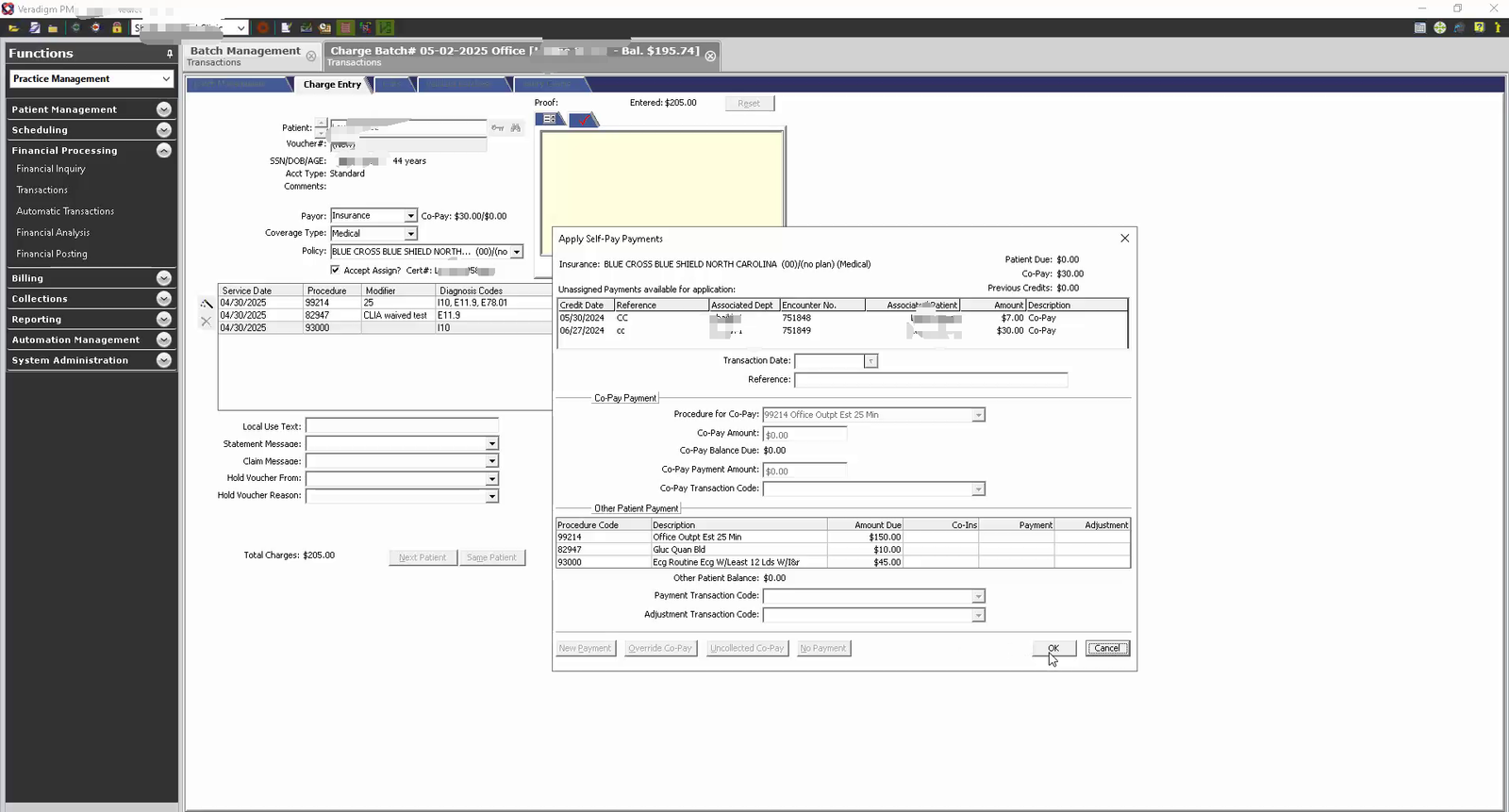
The Apply Self-Pay Payments window displays copayment and prior payment information. In this example, the copayment shown is $30.00. Review unapplied payments before recording or allocating another payment, and avoid duplicate payment posting. A displayed copayment obligation is not proof that a new payment was collected.
Step 6. Verify the charge transaction
Before finishing, check the patient and encounter, insurance effective dates, provider, place of service, service dates, CPT and diagnosis codes, modifiers, units, and $205.00 charge total. Complete the applicable save action and confirm that the charges appear in the intended batch. Batch validation and claim submission are separate steps and are not established by these images.
Need practice management software training for your billing team?
U.S. physicians, practice owners, administrators, medical groups, and revenue cycle leaders can request customized training for charge entry, claims processing, insurance verification, payment posting, denial management, and staff workflows. Whether your team uses Allscripts, eClinicalWorks, AdvancedMD, Tebra, DrChrono, or another system, tell us which platform and workflow you need. Training scope and platform access are confirmed before engagement.
Request Practice Management Training from RCM Navigator
Please do not submit patient-identifiable information through the public inquiry form.
© 2026 Sadia Batool | RCM Navigator. All rights reserved in the original tutorial text and instructional arrangement. Allscripts and Veradigm interface elements remain the property of their respective rights holders.